Visualizzazione post con etichetta microsoft. Mostra tutti i post
Visualizzazione post con etichetta microsoft. Mostra tutti i post
martedì 3 settembre 2013
The Next Chapter: Microsoft and Nokia

"Important news today: an agreement for Microsoft to purchase Nokia’s Devices & Services business, to deliver more choices, faster innovation, and even more exciting devices and services to our customers."
Read the complete post..

martedì 19 febbraio 2013
PeriodicTask bug in Windows Phone 8

After almost two months, WPDev Team has confirmed a bug for PeriodicTask in Windows Phone 8:
PeriodicTask fails to trigger if there is no network connectivity in WP8 (enable Airplane mode, or disable both cellular and wifi.
Here my discussion: http://social.msdn.microsoft.com/Forums/en-US/wpdevelop/thread/216a9f3d-9284-4d1e-ac2a-83f2d13e361c
mercoledì 6 febbraio 2013
Easy SQL CE on Windows Phone
In Windows Phone is very simple to add and use SQL CE database.
What you need? Nothing... it's built in the Windows Phone Runtime.
Let's start...
If not exists, add the reference System.Data.Linq in your project.
Create the class to map the entity to the table:
Now add a class for DataContext with the reference to the table Utenti. The DataContext wraps all operations you can do with database:
The classes for SQL CE are ready.
The last thing is create the physical .sdf file when the application start.
And now enjoy with your LinqToSql queries!
Remember the "using" statement, because you need to dispose your DataContext to prevent high memory usage. The cost to create a new istance is very small.
NOTE: if you want to build an application for Windows 8/RT, maybe SQL CE is not your way. Why? Unfortunately Windows 8/RT don't support it. In this case you can use SQLITE.

What you need? Nothing... it's built in the Windows Phone Runtime.
Let's start...
If not exists, add the reference System.Data.Linq in your project.
Create the class to map the entity to the table:
[Table(Name="Utenti")]
public class Utente
{
    [Column(IsPrimaryKey = true, IsDbGenerated = true)]
    public int Id { get; set; }

    [Column(CanBeNull = false)]
    public string Name { get; set; }
}
You
can see the attributes for the table and columns: table name, primary key, etc..Now add a class for DataContext with the reference to the table Utenti. The DataContext wraps all operations you can do with database:
public class MyDataContext: DataContext
{
    public const string ConnectionString = "isostore:/mydatabase.sdf";

    public Table<Utente> Utenti { get; set; }

    public MyDataContext(string connectionString)
        : base(connectionString)
    {
        this.Utenti = this.GetTable<Utente>();
    }
}
ConnectionString has the special path to locate the database file in the isolated storage.The classes for SQL CE are ready.
The last thing is create the physical .sdf file when the application start.
private void Application_Launching(object sender, LaunchingEventArgs e)
{
    using (var context = new MyDataContext(MyDataContext.ConnectionString))
    {
        if (!context.DatabaseExists())
            context.CreateDatabase();
    }
}
And now enjoy with your LinqToSql queries!
using (var context = new MyDataContext(MyDataContext.ConnectionString))
{
    var utenti = context.Utenti.OrderByDescending(u => u.Name).ToList();
}
Remember the "using" statement, because you need to dispose your DataContext to prevent high memory usage. The cost to create a new istance is very small.
NOTE: if you want to build an application for Windows 8/RT, maybe SQL CE is not your way. Why? Unfortunately Windows 8/RT don't support it. In this case you can use SQLITE.
venerdì 18 gennaio 2013
Windows Phone 8 - Theme Colors (HEX - RGB)
Do you want to know the HEX or the RGB of Windows Phone 8 theme colors? Here the table. Just copy/paste the code below:
Complete list with RGB:

| Lime: #A4C400 | Green: #60A917 | Emerald: #008A00 | Teal: #00ABA9 | Cyan: #1BA1E2 |
| Cobalt: #0050EF | Indigo: #6A00FF | Violet: #AA00FF | Pink: #F472D0 | Magenta: #D80073 |
| Crimson: #A20025 | Red: #E51400 | Orange: #FA6800 | Amber: #F0A30A | Yellow: #E3C800 |
| Brown: #825A2C | Olive: #6D8764 | Steel: #647687 | Mauve: #76608A | Taupe: #87794E |
Complete list with RGB:
- Lime: #A4C400; RGB(164, 196, 0)
- Green: #60A917; RGB(96, 169, 23)
- Emerald: #008A00; RGB(0, 138, 0)
- Teal: #00ABA9; RGB(0, 171, 169)
- Cyan: #1BA1E2; RGB(27, 161, 226)
- Cobalt: #0050EF; RGB(0, 80, 239)
- Indigo: #6A00FF; RGB(106, 0, 255)
- Violet: #AA00FF; RGB(170, 0, 255)
- Pink: #F472D0; RGB(244, 114, 208)
- Magenta: #D80073; RGB(216, 0, 115)
- Crimson: #A20025; RGB(162, 0, 37)
- Red: #E51400; RGB(229, 20, 0)
- Orange: #FA6800; RGB(250, 104, 0)
- Amber: #F0A30A; RGB(240, 163, 10)
- Yellow: #E3C800; RGB(227, 200, 0)
- Brown: #825A2C; RGB(130, 90, 44)
- Olive: #6D8764; RGB(109, 135, 100)
- Steel: #647687; RGB(100, 118, 135)
- Mauve: #76608A; RGB(118, 96, 138)
- Taupe: #87794E; RGB(135, 121, 78)
lunedì 24 dicembre 2012
myBattery for Windows Phone
MyBattery" is out, and it's free for some days!
Do you want to see your battery level in the live tile or in the lock screen?
NOW YOU CAN.. with the best app for this category!
Just pin the tile and check your battery level.


Check the marketplace now: Download myBattery

Do you want to see your battery level in the live tile or in the lock screen?
NOW YOU CAN.. with the best app for this category!
Just pin the tile and check your battery level.


Features:
- Modern UI with animations.
- Battery percentage.
- Remaining charge time.
- Charts: from daily to all history.
- Swap chart color.
- Choose your images: colored or not.
- Notifications in the Lock screen.
Windows Phone API limitations:
- The live tile and the lock screen can be updated approximately every 30 minutes.
- The live tile and the lock screen can show percentage from 0 to 99.
- The notification icon in the lock screen can't change.


Check the marketplace now: Download myBattery
domenica 2 dicembre 2012
Windows Phone - Battery API
One of the new additions with the Windows Phone SDK 8.0, is the ability to query the battery charge.
Here the simple code:
And the event:
Enjoy!

Here the simple code:
Battery battery = Battery.GetDefault();
var percentage = battery.RemainingChargePercent;
var remainingTime = battery.RemainingDischargeTime;
And the event:
battery.RemainingChargePercentChanged += (s, args) =>
{
 // your code here
};
Enjoy!
martedì 13 novembre 2012
myTasks for Windows Phone
With myTasks you can manage your daily tasks in easy steps.


Change the priority with a double tap and customize the UI as you wish.
Complete and restore the tasks with one tap.
If need, set the due date and/or the reminders.
With the new version you can backup and restore your data via SkyDrive.
UI customizations:


Check the Marketplace and buy myTasks for only 0.99$.


Change the priority with a double tap and customize the UI as you wish.
Complete and restore the tasks with one tap.
If need, set the due date and/or the reminders.
With the new version you can backup and restore your data via SkyDrive.
UI customizations:
- Task color
- Priority color
- Task font size
- Priority font size
- Live Tiles


Check the Marketplace and buy myTasks for only 0.99$.
sabato 10 novembre 2012
NowPlaying for Windows Phone
With NowPlaying you can listen your music and share the #NowPlaying hashtag in Twitter, Facebook and the other networks.

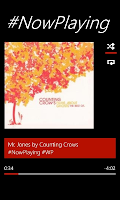

Gestures control:


More features:
Check NowPlaying in the Marketplace and remember to swipe down to share!


Gestures control:
- Open your media library.
- Play or pause the music.
- Move to next or previous song.
- Share your #NowPlaying status.


More features:
- Live Tile customizable with the last song played.
- Select your #NowPlaying style from the default formats or create your own with the simple editor: you have the full control.
- Disable the Lockscreen from the application.
Check NowPlaying in the Marketplace and remember to swipe down to share!
domenica 4 novembre 2012
Windows 8 - Images and DPI
Windows 8 is DPI aware then the applications auto-scale images according to DPI and screen resolution:
The developer can use vectorial elements like SVG or XAML without problems.
Otherwise when the developer uses the images raw, bitmap, png or jpg, he needs to create a file for every case.
He can explicit the scale factor in the file extension:
\myLogo.scale-100.jpg
\myLogo.scale-140.jpg
\myLogo.scale-180.jpg
Or use the folder convention:
\scale-100\myLogo.jpg
\scale-140\myLogo.jpg
\scale-180\myLogo.jpg
When the application don't has static images, it's possible to create a logic to have the same result from code behind.
The class DisplayProperties has some event to help the developer:

- 100% when the scale is not applied.
- 140% when the screen resolution is 1920x1080 and for all devices with minimum 174 DPI.
- 180% when the screen resolution is 2560x1440 and for all devices with minimum 240 DPI.
The developer can use vectorial elements like SVG or XAML without problems.
Otherwise when the developer uses the images raw, bitmap, png or jpg, he needs to create a file for every case.
He can explicit the scale factor in the file extension:
\myLogo.scale-100.jpg
\myLogo.scale-140.jpg
\myLogo.scale-180.jpg
Or use the folder convention:
\scale-100\myLogo.jpg
\scale-140\myLogo.jpg
\scale-180\myLogo.jpg
When the application don't has static images, it's possible to create a logic to have the same result from code behind.
switch (DisplayProperties.ResolutionScale)
{
 case ResolutionScale.Scale100Percent:
  img.Source = new BitmapImage(new Uri("url?s=100"));
 break;
 case ResolutionScale.Scale140Percent:
  img.Source = new BitmapImage(new Uri("url?s=140"));
 break;
 case ResolutionScale.Scale180Percent:
  img.Source = new BitmapImage(new Uri("url?s=180"));
 break;

 default:
 // some exception
}
The class DisplayProperties has some event to help the developer:
- ColorProfileChanged: when the color profile changes.
- LogicalDpiChanged: when the the pixel per inches (PPI) changes.
- OrientationChanged: when device orientation changes.
- StereoEnabledChanged: when the property StereoEnabled changes (3D stereoscopic).
domenica 28 ottobre 2012
Windows Phone - Localization
When you publish a Windows Phone application in the Marketplace, you have more visibility if you support the region language.
An easy way to build a localized app is to use resources file (.resx).
First of all remember to set the default "neutral" language in the project properties! This is an important step because the "AppResources.resx" file is used from all not specified languages.
Add new file, and name it "AppResources.resx" for default language. For a new language, just add a new resource named with the CultureInfo ISO letters:

Now unload your project and edit the csproj file to add your supported language:
Create a class to get your resources.
In your xaml you need to declare your class as resource:
Now you can use your localized string like this:
To test your app you can insert this code in application launching event:
All CultureInfo codes here.
An easy way to build a localized app is to use resources file (.resx).
First of all remember to set the default "neutral" language in the project properties! This is an important step because the "AppResources.resx" file is used from all not specified languages.
Add new file, and name it "AppResources.resx" for default language. For a new language, just add a new resource named with the CultureInfo ISO letters:
- AppResources.it-IT.resx for italian language.
- AppResources.cs-CZ.resx for czech language.
- AppResources.fr-FR.resx for french language.
- etc..

Now unload your project and edit the csproj file to add your supported language:
<SupportedCultures>it-IT;en-US;cs-CZ;fr-FR</SupportedCultures>
Create a class to get your resources.
public class LocalizedStrings
    {
        private static AppResources localizedResources = new AppResources();

        public AppResources Strings
        {
            get
            {
                return localizedResources;
            }
        }
    }
In your xaml you need to declare your class as resource:
<phone:PhoneApplicationPage.Resources>
     <local:LocalizedStrings x:Key="LocalizedStrings"/>
 </phone:PhoneApplicationPage.Resources>
Now you can use your localized string like this:
Text="{Binding Strings.Loading, Source={StaticResource LocalizedStrings}}"
Or from code behind:txtLoading.Text = AppResources.Loading;
To test your app you can insert this code in application launching event:
Thread.CurrentThread.CurrentCulture = new System.Globalization.CultureInfo("it-IT");
Thread.CurrentThread.CurrentUICulture = new System.Globalization.CultureInfo("it-IT");
All CultureInfo codes here.
venerdì 19 ottobre 2012
Windows Phone - Get Album Art
When you use MediaPlayer class in Windows Phone, usually you want to get the album cover for the current song.
You can access the current track with the ActiveSong property. This property is exposed by the Queue of MediaPlayer. Then you can check out the album art.
This code is all you need:

You can access the current track with the ActiveSong property. This property is exposed by the Queue of MediaPlayer. Then you can check out the album art.
This code is all you need:
if (MediaPlayer.Queue.ActiveSong.Album.HasArt)
{
 BitmapImage bmp = new BitmapImage();
 bmp.SetSource(MediaPlayer.Queue.ActiveSong.Album.GetAlbumArt());
 imgAlbum.Source = bmp;
}
sabato 6 ottobre 2012
Equality Comparer with Lambda
Today, it's normal to write code with LINQ and Lambda Expressions.
But when you need to use IEqualityComparer, it's not possibile to use a lambda predicate.
The Interface needs a class, then you have to create a new type that inherit from IEqualityComparer.
You can use this workaround:
The simple usage is:
But when you need to use IEqualityComparer, it's not possibile to use a lambda predicate.
The Interface needs a class, then you have to create a new type that inherit from IEqualityComparer.
You can use this workaround:
public class EqualityComparer<T> : IEqualityComparer<T>
{
   private Func<T, T, bool> _fnEquals;
   private Func<T, int> _fnGetHashCode;
   public EqualityComparer(Func<T, T, bool> fnEquals, Func<T, int> fnGetHashCode)
   {
      _fnEquals = fnEquals;
      _fnGetHashCode = fnGetHashCode;
   }
   public bool Equals(T x, T y)
   {
      return _fnEquals(x, y);
   }
   public int GetHashCode(T obj)
   {
      return _fnGetHashCode(obj);
   }
}
The simple usage is:
Dictionary<int, string> d = new Dictionary<int, string>() { { 1, "a" }, { 2, "a" }, { 3, "b" } };

var d2 = d.Distinct(new EqualityComparer<KeyValuePair<int, string>>((kvp1, kvp2) => kvp1.Value == kvp2.Value, kvp => kvp.Value.GetHashCode()));
lunedì 24 settembre 2012
Windows Phone - Settings Page in 5 minutes
The best user experience for a settings page is: stay away from the save button.
People don't love to press the back button and lose all settings. Then it's better to save when the user does something.
Thanks to Jerry Nixon you can use this code and have a base framework for all your applications.
The code is very easy:
Enjoy!
People don't love to press the back button and lose all settings. Then it's better to save when the user does something.
Thanks to Jerry Nixon you can use this code and have a base framework for all your applications.
    public static bool EnableLocation
    {
        get { return Get("EnableLocation", false); }
        private set { Set("EnableLocation", value); }
    }

    public static event PropertyChangedEventHandler SettingChanged;

    private static T Get<T>(string key, T otherwise)
    {
        try
        {
            return (T)IsolatedStorageSettings.ApplicationSettings[key];
        }
        catch { return otherwise; }
    }

    private static void Set<T>(string key, T value)
    {
        IsolatedStorageSettings.ApplicationSettings[key] = value;
        if (SettingChanged != null)
            SettingChanged(null, new PropertyChangedEventArgs(key));
    }
The code is very easy:
- the "Get" function return the default value if the key don't exists.
- the "Set" function uses an event to immediatly reflect changes into your apps.
- the functions use "Generics".
Enjoy!
sabato 15 settembre 2012
myMoneyBook for Windows Phone

 "myMoneyBook" is an easy way to manage your personal finances.
You can customize catogories according to your needs, and set a monthly budget to keep track of what you spent.
The dashboard summarize the balance with simple indicators and have two big tiles to speed up your operations.
"myMoneyBook" is an easy way to manage your personal finances.
You can customize catogories according to your needs, and set a monthly budget to keep track of what you spent.
The dashboard summarize the balance with simple indicators and have two big tiles to speed up your operations.All screens are in perfect Windows Phone style.
It's possible to set your privacy with a password.
There is a fast option to backup and restore all data via SkyDrive, and to export the records in file .csv.
The landscape mode show customizable and zoomable charts for detailed statistics.


"myMoneyBook" offers also customizable live tile:
- Change image
- Enable budget alert
- Show today balance
- Show monthly balance
- Show total balance
At moment myMoneyBook is translated in Italian, English and Czech language.

More screenshots:


giovedì 13 settembre 2012
Windows Phone - Live Tiles with Telerik
The default Windows Phone framework offers a simple template for tiles:
With Telerik RadControl for Windows Phone you have more power in your hands!
"LiveTileHelper" class helps you to create dynamic live tiles with your own design and your own content.
The "RadExtendedTileData" extends the standard tile data with two properties VisualElement and BackVisualElement.
Now the amazing thing: this properties accept UIElement. Yes, UIElement!!
Now let's code...
You can customize MyUserControl and MyUserControl2 as you want, the only limit is your imagination.
Then, why should you use this controls?
And remember this: a good app, has a good live tile.
- Static background image from application or from url.
- Title.
- Number (top right).
- A back message.
With Telerik RadControl for Windows Phone you have more power in your hands!
 |
| myWeather |
"LiveTileHelper" class helps you to create dynamic live tiles with your own design and your own content.
The "RadExtendedTileData" extends the standard tile data with two properties VisualElement and BackVisualElement.
Now the amazing thing: this properties accept UIElement. Yes, UIElement!!
Now let's code...
LiveTileHelper.CreateOrUpdateTile(
 new RadExtendedTileData()
 {
  Title = "My front title",
  VisualElement = new MyUserControl(),
  BackTitle = "My back title"
  BackContent = "My back message",
  BackVisualElement = new MyUserControl2(),
 },
 new Uri("/MainPage.xaml?param=myparam", UriKind.RelativeOrAbsolute)
);
You can customize MyUserControl and MyUserControl2 as you want, the only limit is your imagination.
Then, why should you use this controls?
- Easyness
- More features
- Time saver
- Support and help
And remember this: a good app, has a good live tile.
sabato 8 settembre 2012
Windows Phone - Low memory devices
SDK 7.1.1 includes features specifics to developing for 256MB devices (Nokia Lumia 610 and others).
Low memory devices have some limitations, then you need to check the memory size and if needed, disable some features to target the largest possible market.
First, you need this MemoryHelper:
Now you can easy detect device type:
Tips:
Low memory devices have some limitations, then you need to check the memory size and if needed, disable some features to target the largest possible market.
First, you need this MemoryHelper:
public static class MemoryHelper
{
 public static bool IsLowMemDevice { get; set; }

 static MemoryHelper()
 {
   try
   {
     Int64 result = (Int64)DeviceExtendedProperties.GetValue("ApplicationWorkingSetLimit");
    if (result < 94371840L) IsLowMemDevice = true; else IsLowMemDevice = false;
   }
   catch (ArgumentOutOfRangeException)
   {
     //windows phone OS not updated, then 512mb
     IsLowMemDevice = false;
   }
 }
}
Now you can easy detect device type:
if (MemoryHelper.IsLowMemoryDevice)
 // do some work
Tips:
- PeriodicTask and ResourceIntensiveTask classes are not supported to 256MB phones. This background agents throw an exception if you try to schedule them on this devices.
- Check your app with Windows Phone Memory Profiler (it is included in VS2010).
- Use WebBrowserTask instead of the <WebBrowser /> control to display web pages.
- Use BingMapsTask instead <Map /> control.
- Consider to reduce image quality and reduce the number of the animations.
- Avoid long lists of data. The best practice is to use data virtualization.
- Consider to disable page transitions.
- Remember to test your application with all two emulators!
giovedì 6 settembre 2012
Windows Phone - Keyboard suggestions
In Windows Phone standard apps (like mail and messaging), when you enter a text, you will see the list of suggestions for the text you are typing.
In your app, every Textbox has the ability to have an InputScope assigned to it.
XAML:
You can find more InputScopeNameValue enumerator on MSDN.
In your app, every Textbox has the ability to have an InputScope assigned to it.
XAML:
<TextBox InputScope="Text" />
InputScope help the developer to assign also the good keyboard for the context:
- URL: this keyboard gives you a ".com" button to finish typing your URLs, but that button, with a long-tap, will also expand to show you .net, .org, .edu, and .co.uk.
- TelephoneNumber: it gives the user a numeric dial pad instead of an alphabetic keyboard.
- EmailNameOrAddress: it gives a period, an @ symbol and ".com" button.
You can find more InputScopeNameValue enumerator on MSDN.
Windows Phone - Share Status Task
Microsoft made available to developers some Launchers and Choosers.
Now is very easy to share your status in the most popular social networks with a simple code:
Now is very easy to share your status in the most popular social networks with a simple code:
ShareStatusTask shareStatusTask = new ShareStatusTask();

shareStatusTask.Status = "Hello, today is a great day";

shareStatusTask.Show();
Iscriviti a:
Post (Atom)